
TL;DR
Identifying the correct ticker is crucial to ensure accurate transaction tracking and reporting. CoinTracking tickers can be found in the Coin Trends section. This guide explains two main methods for finding the correct ticker, by Contract ID or by Ticker Name, how to adjust tickers in your account, and how to troubleshoot incorrect balances caused by wrong tickers or duplicate imports.
1) Finding the Correct Ticker via Contract ID
For many cryptocurrencies, the Contract ID is the most reliable way to identify the correct ticker. CoinTracking sources its data from trusted platforms such as CoinMarketCap (CMC) and CoinGecko (CG). Steps:
- Locate the Contract ID on CMC or CG: search for the coin, go to the Contracts section, and copy the displayed Contract ID.
CoinMarketCap CoinGecko
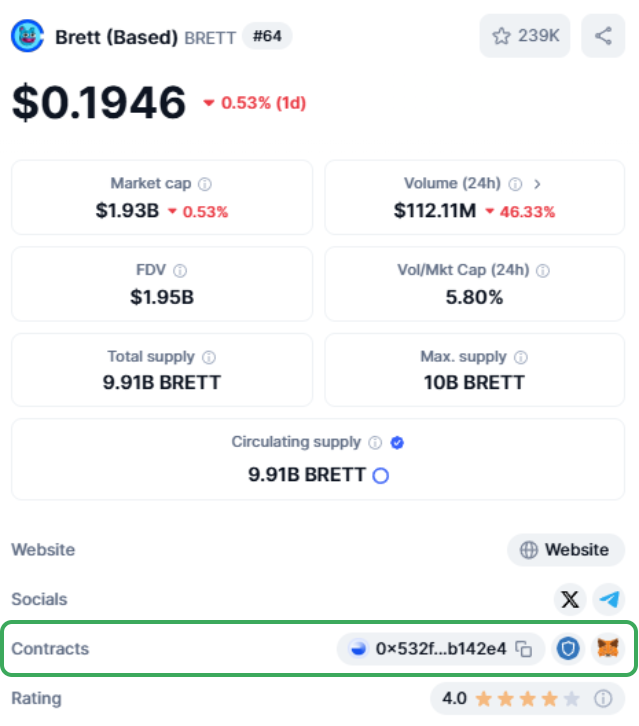
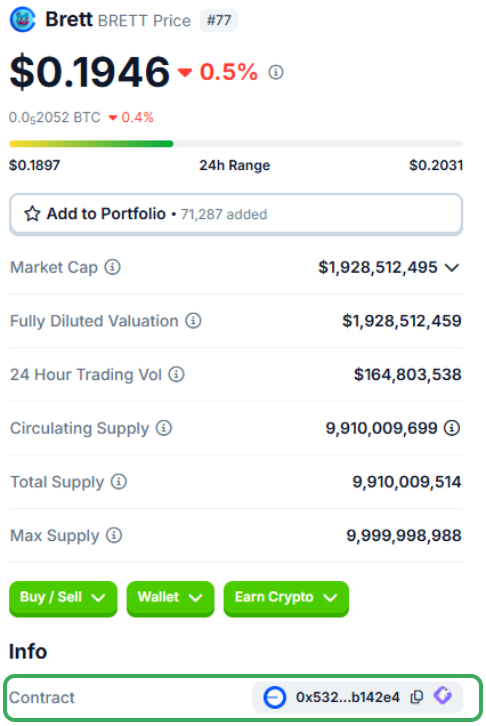
- In CoinTracking, go to Coin Trends and paste the Contract ID into the search field.
Note: Not all coins have a Contract ID, and some may not be searchable by Contract ID in CoinTracking. In that case, search by ticker name.
2) Finding the Correct Ticker via Ticker Name
If no Contract ID is available, you can search by the coin’s ticker name. Steps:
Search for the ticker in Coin Trends.
Compare the displayed price with the price on CMC or CG, making sure to check the currency (USD, EUR, etc.).
Note: Small price differences are normal because CoinTracking and CMC/CG update prices at different intervals.
3) Adjusting the Ticker in CoinTracking
For a Single Transaction:
Go to the Transactions page.
Click the Currency/Ticker field of the relevant transaction and enter the correct ticker.
For Multiple Transactions:
- Hold CTRL to select multiple transactions of the same type and update the ticker for all at once.
For Bulk Changes:
- Use the Overwrite Coins feature to update tickers in bulk. Refer to the Overwrite Tickers in Bulk guide for details.
4) Troubleshooting Incorrect Balances
Wrong or duplicate tickers often show up first as incorrect balances. The following tools and checks help you pinpoint and fix the root cause.
Why does an exchange or wallet show the wrong balance?
Open the Coins per Exchange page. It breaks down your holdings by exchange/wallet, making it easy to spot which specific account is showing an incorrect balance for a coin.
Once you've identified the affected exchange or wallet, check the transactions for that coin there and correct the ticker as described above.
How can I find missing transactions?
- If you have a large number of transactions and can't easily spot the error manually, use the Missing Transactions report. It helps surface gaps or inconsistencies in your transaction history that can lead to incorrect balances.
Why do I see doubled balances for coins like VET/VTHO?
Doubled balances can occur when the same coins are imported twice, for example, once via a Ledger CSV import and again via a wallet/blockchain import for the same address. This is a common cause for duplicated VET/VTHO (and similar) balances.
Check whether you've imported the same wallet or address through more than one method, and remove the duplicate import if found.
Recommended approach for fixing balances
- Work through the issue systematically: go exchange by exchange (or wallet by wallet), coin by coin. Use the Coins per Exchange page and the Missing Transactions report together to identify where the discrepancy originates, then correct the ticker or remove duplicate imports as needed.