
TL;DR: CoinTracking offers a CSV export for WISO (short-term capital gains and income only) and a fill-in-help for the German "KAP+SO" tax forms via your tax report. There is currently no export option for ELSTER. If numbers in these reports look wrong or incomplete, it is usually caused by missing or incorrectly entered transactions in your account. Check your balances before submitting any report.
How do I export my data for WISO?
For WISO we offer a CSV export option. Please open the Tax report page in your account and load the report:

On your capital gains report please click on the "WISO Steuer" button:
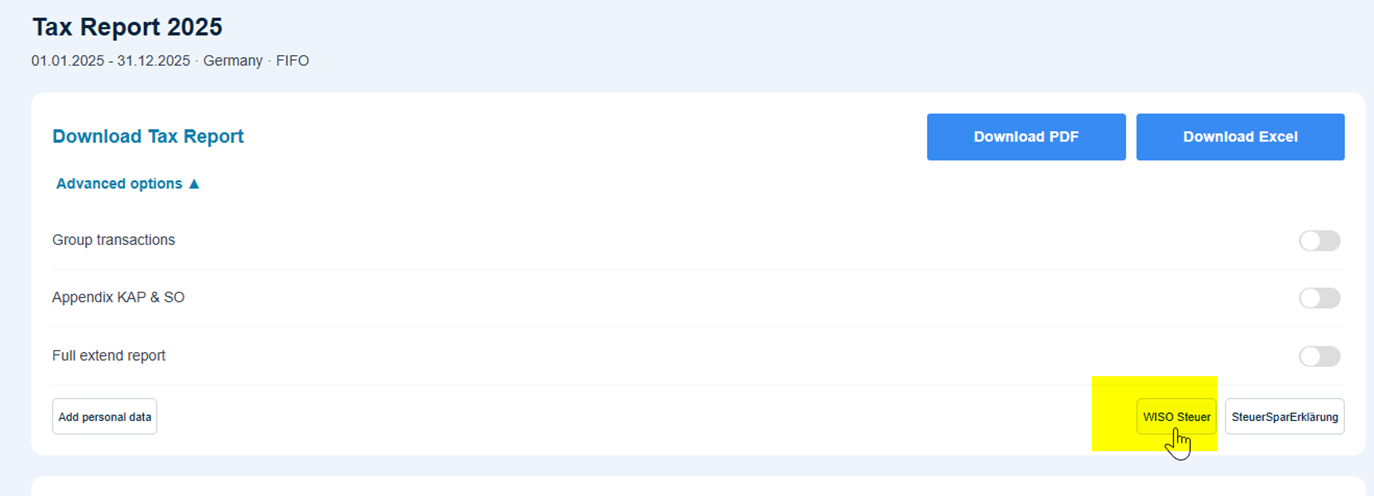
Please follow the instructions on the next page.
WISO only imports capital gains which are short-term (below a 12 month holding period; therefore, only these are exported to the CSV file) and income for the selected tax year. WISO does not offer any other import options for fees, donations, losses, derivative/margin/futures PnL data, etc. right now. This can lead to different results compared to your full CoinTracking tax report. Long-term trades are not part of the CSV, as WISO would otherwise add them as taxable. Transaction types that are not supported by the WISO import can be added manually as sum/totals directly in WISO.
How do I fill in the KAP+SO form?
For the "KAP+SO" form we offer a fill-in-help via download of your tax report, which you can use as a reference when completing the form manually. Ultimately, it is your choice how many and which reports you send to the authorities as proof of evidence.

Is there an export option for ELSTER?
For ELSTER there is no export option available yet.
Why are my e.g. Margin Losses not automatically part of the KAP+SO form?
Because the losses are capped at a certain amount and someone may also have losses from other assets, this figure cannot simply be added automatically. Therefore you find the number in your tax report, but you need to fill it into your KAP form manually.

Why do the numbers in my tax report look wrong or incomplete?
If transactions are missing or entered incorrectly in your account, this can lead to discrepancies in your balances and cause incorrect warnings on your tax report (e.g. wrong gains, unexpected negative balances, or missing income). Before relying on the WISO export or the KAP+SO fill-in-help, it's worth checking your account for such issues:
- Follow the general guidance on diagnosing discrepancies in your balances to identify where a mismatch comes from.
- Check the report on missing transactions (entries shown in white / without a matching trade) to spot gaps in your transaction history.
- Use the general account review tools/guides to verify that all your transactions, trades, and transfers have been imported and categorized correctly.
Correcting these issues in your account will also correct the figures shown in your WISO export and KAP+SO fill-in-help.
Need more help? Contacting support
If you still have questions after reviewing your reports, you can reach out via our support ticket system. Please note:
- The support ticket system runs on a separate login from your regular CoinTracking account. It requires its own account.
- When using the support tool for the first time, you will receive a separate activation email to set/reset your password for that system.
- If you don't see this email (or any reply from support) in your inbox, check your spam/junk folder, as these messages can sometimes end up there.