
TL;DR: The Transaction Flow Report helps you trace transactions chronologically, quickly identify warnings and errors, and fix their root causes efficiently. It shows balances before and after each transaction, supports powerful filters, warning-only views, and exports, and is one of the most important tools to validate your data before generating tax reports.
What is the Transaction Flow Report?
The Transaction Flow Report is an analysis and control tool in CoinTracking. It displays all transactions in chronological order and shows how your balance changes with each individual transaction. This makes it possible to identify errors, missing balances, or inconsistent transaction chains.
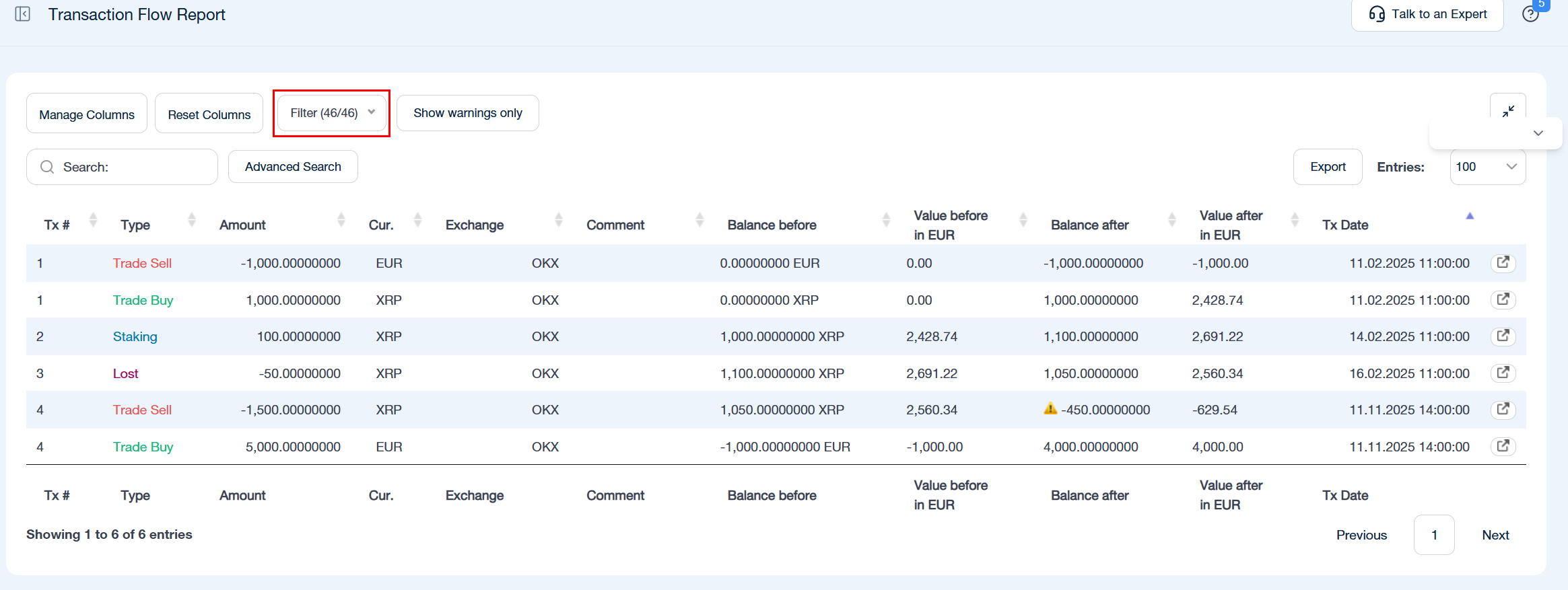
Which filters are available?
The filter section allows you to narrow down the displayed data precisely:
Select specific transaction types
Filter by exchanges and wallets
Restrict the time period
Combine multiple filters for targeted error analysis
Example:
If a warning was issued on April 2, 2024, you can limit the report to this date and exclude certain transaction types to quickly identify the cause.
What does “Value before” and “Value after” mean?
The Value before and Value after columns show the value of the asset balance on the corresponding exchange or wallet before and after each transaction.
The calculation is based on:
Asset Value = Coin Balance × Coin Price at that point in time
These values do not represent realized gains, losses, or transfer amounts. Instead, they show how the asset value changes on each exchange or wallet throughout the transaction flow.
Because the report tracks the value of individual balances over time, the values are not intended to "balance out" in the same way as coin quantities do during transfers.
Example:
A withdrawal reduces the asset value on the sending wallet.
The matching deposit increases the asset value on the receiving wallet.
Small incoming transactions, airdrops, or dusting transactions can change the displayed values even if the transferred amount is very small.
This behavior is normal and does not affect your tax calculations.
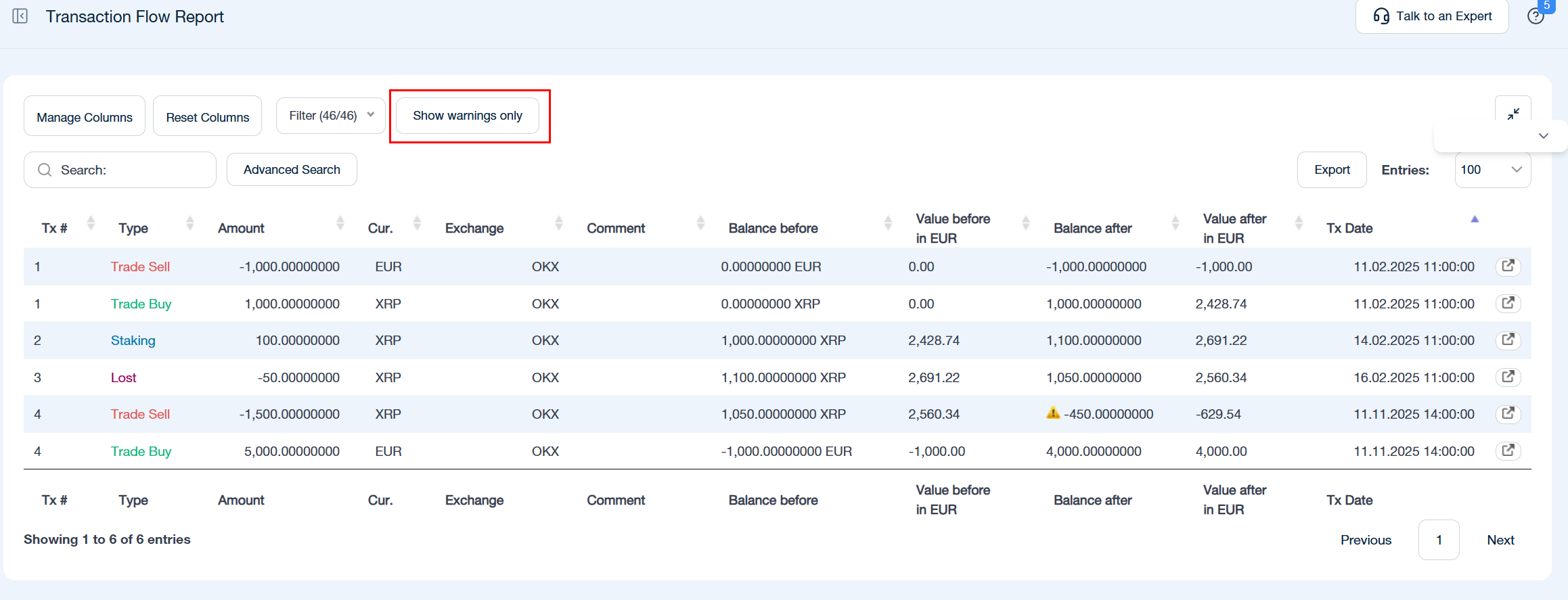
What does “Show warnings only” mean?
This option displays only transactions that contain warnings.
It is a simple but extremely effective way to focus exclusively on problematic entries without distraction from valid transactions.
How does depot separation work in the Transaction Flow Report?
The Transaction Flow Report automatically adopts the setting from the most recently generated tax report:
If depot separation was enabled there, it will also be applied here
If it was not enabled, the report is shown without depot separation
The display therefore always follows the configuration of the latest tax report.
What can the Transaction Flow Report do?
With this report, you can:
Display all transactions in full detail
Search specifically for warnings and errors
View incoming transactions, outgoing transactions, and fees as separate entries
Search and sort all entries
Use advanced search options
Filter entries by type, exchange, group, or date
Export all entries as CSV, Excel, or PDF
How does the report help with error detection?
The Transaction Flow Report immediately highlights insufficient balances.
Example:
You sell 1,500 XRP while only 1,050 XRP are available.
→ CoinTracking immediately triggers a warning.

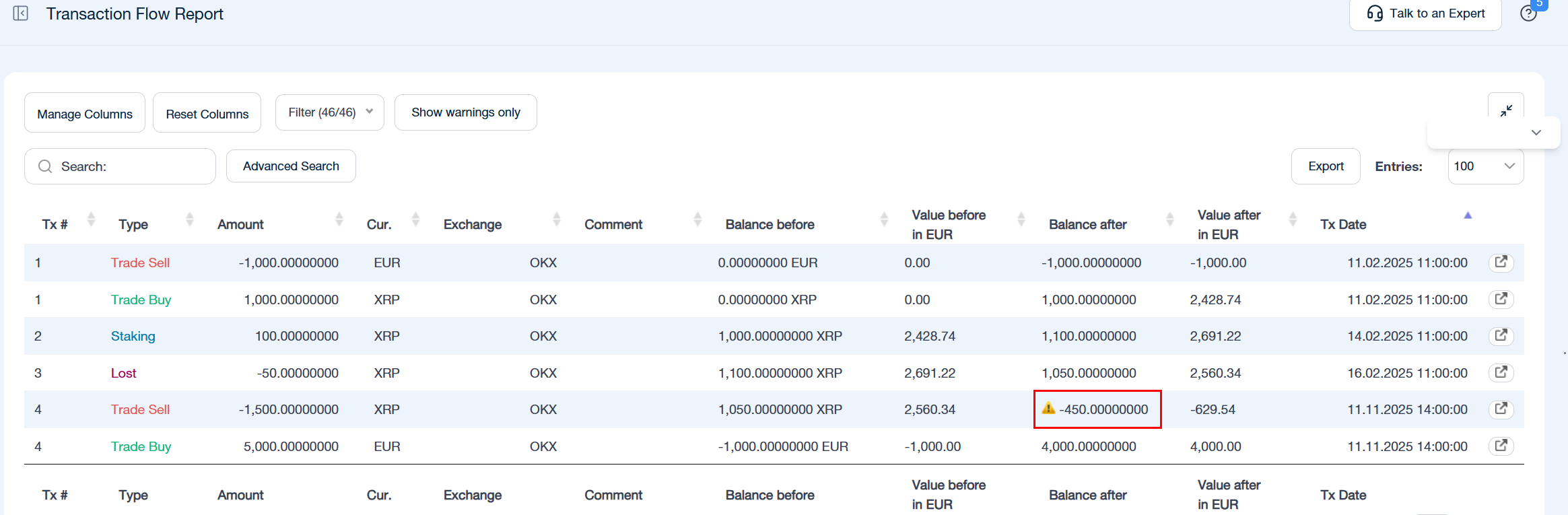
In the report, you can see:
Which transaction causes the negative balance
From which point onward the balance becomes insufficient
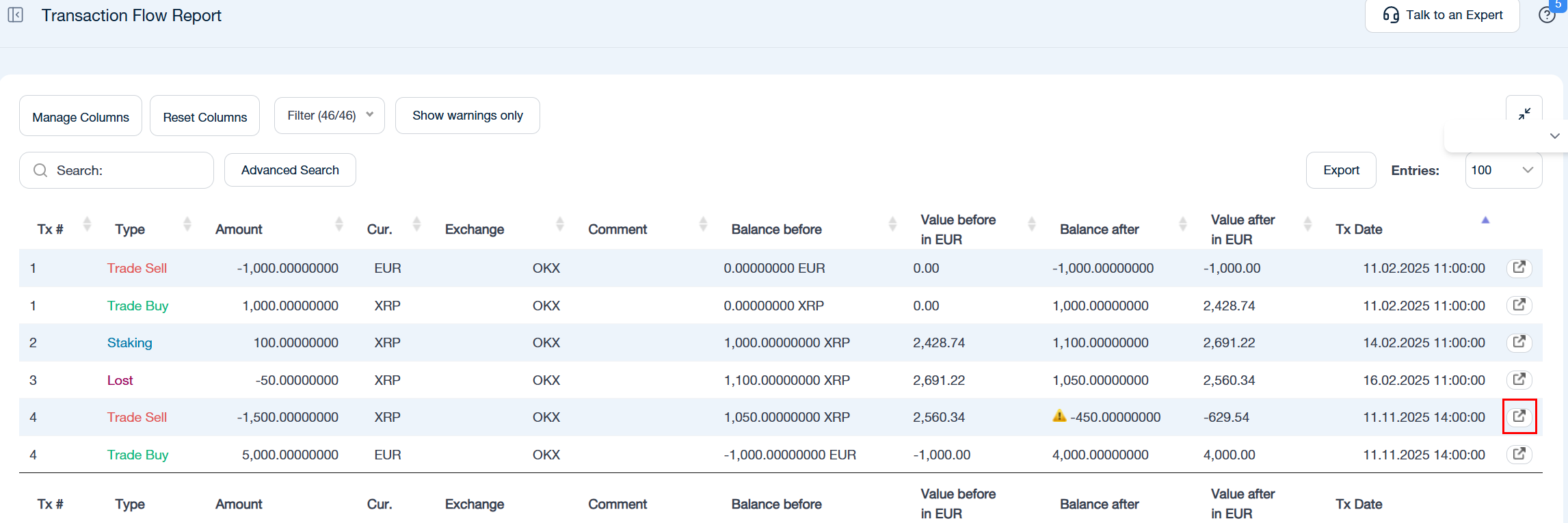
By clicking the corresponding icon, you can jump directly to the affected transaction and correct it.
Why does the error sometimes occur earlier?
Often, the actual cause does not originate from the transaction where the warning appears. Instead, it may have occurred earlier in the same transaction chain.
A missing or incorrect transaction earlier in the chain can propagate the warning to all subsequent transactions.
Example:
Part of the 1,000 EUR may already have been used in an earlier transaction or incorrectly recorded.
Tip for narrowing down errors efficiently
A proven method for isolating the problem:
Add a simulated test transaction with a sufficiently high balance at the very beginning of the transaction chain
Mark it with a comment such as “test”

If the warning disappears afterward, it indicates that a balance is missing or incorrect somewhere earlier in the chain
This approach allows you to systematically narrow down the source of the issue and rule out other potential causes.
Summary
Use the Transaction Flow Report to:
Trace transactions step by step
Identify warnings and balance issues quickly
Locate the root cause within transaction chains
Jump directly to affected transactions
Prepare clean and reliable data for tax reports